Connect Ghost to SEOryon
Add a custom integration in Ghost, paste the Admin API key, and approved articles arrive as published posts with tags, a feature image, and meta fields set. Your newsletter stays entirely under your control.
- How it connects
- Ghost Admin API key from a custom integration
- Edit after publishing
- Yes, updates republish the same post
- Delete and unpublish
- Yes, from SEOryon
- Tables
- Yes, published as real tables
Before you connect
Get these in place first. They are the difference between a connection that goes green and one that fails on the first publish.
- Ghost 5.x or 6.x, on Ghost(Pro) or self-hosted.
- A custom integration in Ghost admin. On Ghost(Pro) that needs a plan with Admin API access (Publisher and up). Any self-hosted Ghost works.
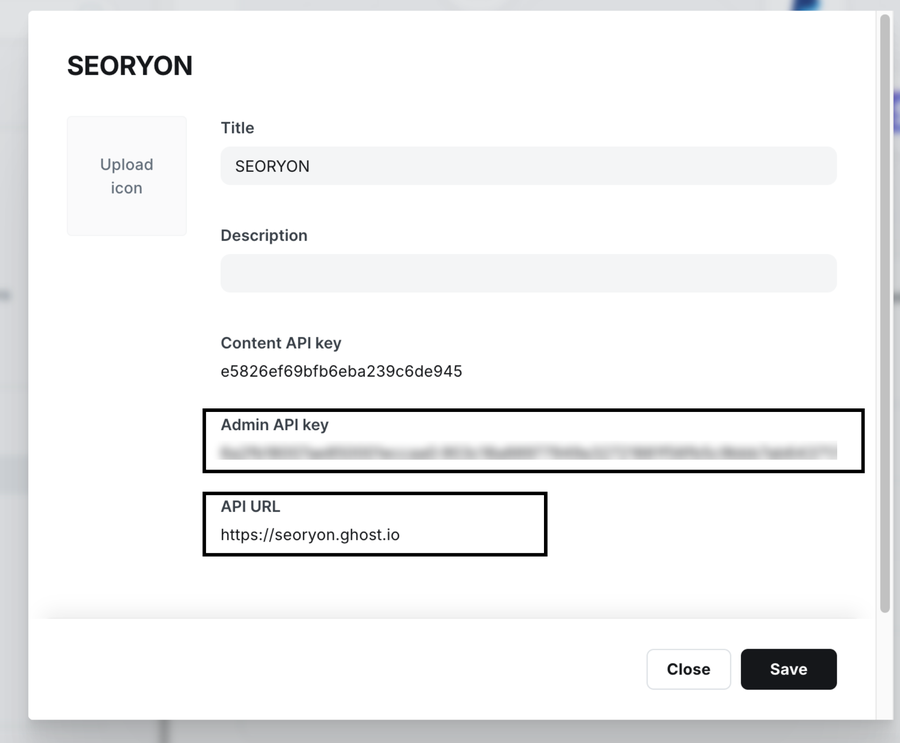
- The Admin API key and the API URL from that integration screen. Not the Content API key.
How to connect, step by step
The same steps SEOryon walks you through in the app, with the screens you will actually see.
- 1
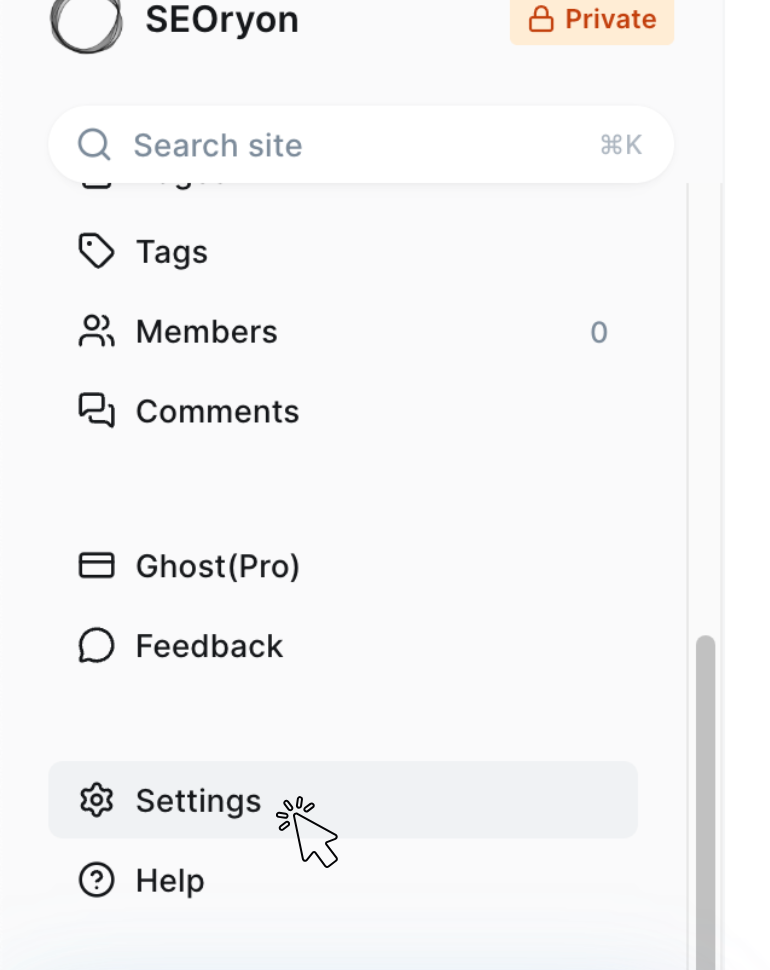
In Ghost Admin, click Settings, the gear at the bottom left of the sidebar.
Ghost Admin: Settings. - 2
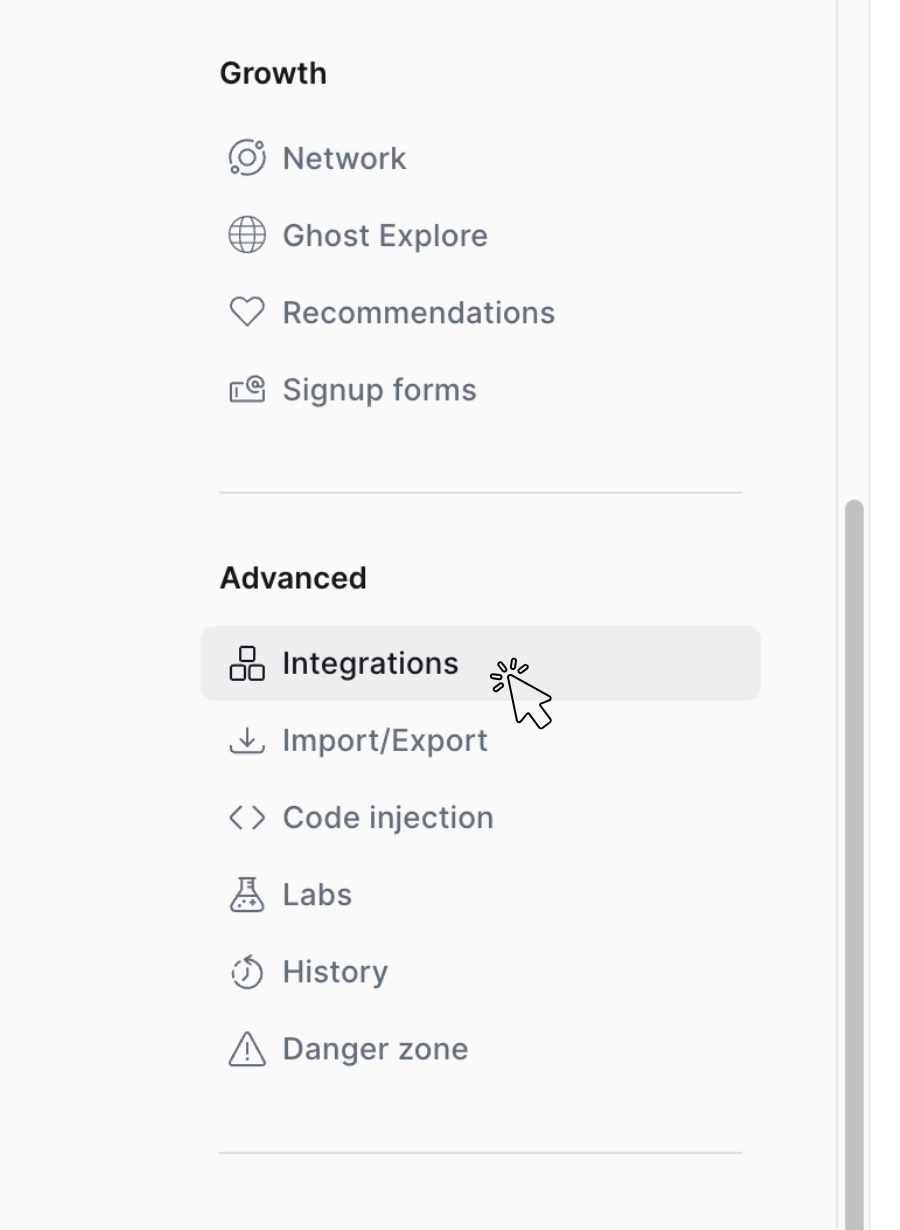
Scroll the settings sidebar to Advanced, then Integrations.
Settings: Advanced, Integrations. - 3
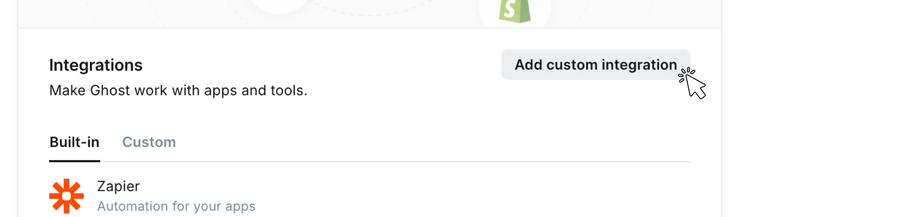
Click Add custom integration at the top right and name it, for example SEOryon.
Integrations: Add custom integration. - 4
Copy the Admin API key and the API URL into SEOryon. The screen shows three values; SEOryon needs the Admin API key plus the API URL, never the Content API key.
Take the Admin API key and API URL.
What happens when you click Connect
Connecting runs a real test publish. SEOryon creates a draft, verifies it, deletes it, and only then marks the connection healthy, so a connected badge means publishing genuinely works.
What you can do once Ghost is connected
- Create and publish posts.
- Update in place, so edits in SEOryon republish the same post.
- Delete and unpublish remotely from SEOryon.
- Feature image and tags.
- Meta title, meta description, and custom excerpt.
- Tables publish as real tables.
What to know about Ghost
The honest part. Every platform has edges, and you should hear about them from us before you hit them.
Publishing through SEOryon never emails your Ghost members. An article going live does not trigger a newsletter send, by design. Sending stays your decision, inside Ghost.
Comparison tables publish as real tables on Ghost. See the full table support matrix.
What publishing looks like
Approved articles arrive in Ghost as published posts with tags, feature image, and meta fields set, and nothing goes out to your list.
SEO on Ghost
Best practices that move the needle
Built for publishing, so the fundamentals are mostly handled. Focus on depth and internal links.
- Set a clear meta title and description per post in the post settings.
- Use tags as topic hubs and keep them meaningful rather than sprawling.
- Add internal links between related posts to build topical authority.
- Keep images optimized and add descriptive alt text on every one.
- Use the canonical field when you republish or syndicate a post elsewhere.
 GoHighLevel
 Base44
 Lovable
See it on your own site, free.
Start a 3-day free trial and generate 3 real articles on your own site before you decide. Cancel before day 3 and you pay nothing.
- Done-for-you articles, monthly
- Built on your real search data
- Publishes straight to your CMS
- Built for Google and AI search
- 3-day free trial, cancel anytime